
Benson Audiometer Interface Details
This page provides detailed instructions for retrieving audiometric test results from Benson software. It outlines the technical setup, required plugins, collected data fields, and step-by-step workflow for importing results in batch mode. The process involves exporting data from Benson, uploading it into the Enterprise Health system, validating patient matches, and managing which tests to save.
Purpose: To guide users through the process of importing audiometric test results from Benson audiometers into Enterprise Health, ensuring accurate data transfer, patient validation, and proper system configuration.
High-Level Workflow
- Export Results from Benson
- In Benson software, export results using the “Webchart Data Transfer” format.
- Choose the file location for export.
- Import Results into Enterprise Health.
- Go to Control Panel > Import tab > Device Import.
- Select “Benson Audiogram Data Import” from the dropdown.
- Click “Go” and select the exported data file.
- Choose the correct partition and location.
- Click “Upload.”
- Validate and Manage Imported Data
- Review the list of patients/tests found.
- Edit patient matches if necessary (using the pencil icon).
- Deselect any tests that should not be uploaded.
- View test details with the information icon.
- Finalize upload or close the window to discard.
Technical Details
Connectivity:
- CSV file over HTTPS
- Benson Cloud middleware - not yet developed
Frequency
- Inbound: Batch export from device
- Outbound: Batch (Demographics and Audio History)
- Historical data can be imported via Data Import-> Audiometric Data CSV API
Software Requirements
- Plugins: Stxextractmie.mdb (See Pre-Requisites for download instructions)
- Benson Plus Package software
Collected Fields
The following fields are collected in Enterprise Health :
- Left ear frequencies: 500Hz, 1kHz, 2kHz, 3kHz, 4kHz, 6kHz, 8kHz
- Right ear frequencies: 500Hz, 1kHz, 2kHz, 3kHz, 4kHz, 6kHz, 8kHz
- Left baseline
- Right baseline
- Patient MR Number
- Test Date/Time
- Audiometer Serial Number
- Calibration Date/Time
- Test comment
- User that performed the test
- Translations are used to map users from the device to the Enterprise Health user(s). The translations have the name of “Device” and the category of “tech” (see Configuration for set-up instructions)
Install Instructions
Pre-Requisites
- User needs to have administrator permissions to the work station
- Ability to login to Enterprise Health system
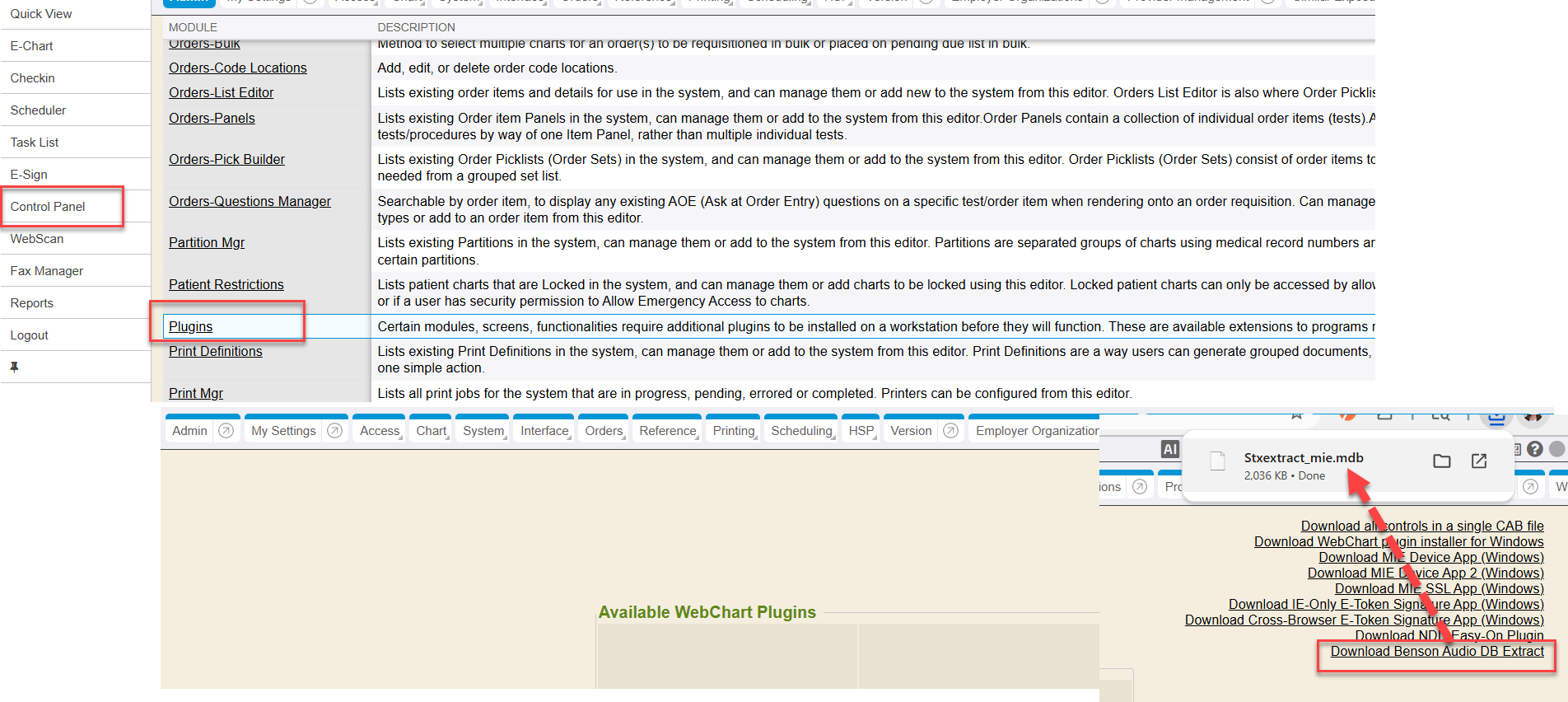
- Install plugin - Stxextractmie.mdb
- Control Panel → System Plugins → Download “Download Benson Audio DB Extract”
- If link is missing, contact support@enterprisehealth.com
- Install the plugin in the Plus Package software using the “Merge”
option under the File menu
- The configuration file (Stxextractmie.mdb) must be imported into the Benson software for correct formatting into Enterprise Health
- Ability to login to the Benson Device software with the Benson Plus Package
- Benson Requirements
- Ability to login and use to the Benson Device software
- Test data created in Benson to be used for exporting to Enterprise Health
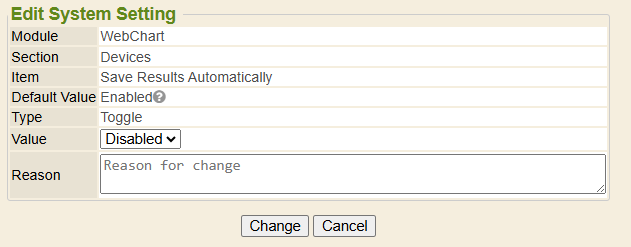
- In Enterprise Health, turn off “Save Results Automatically” by
navigating to the Control Panel → System Setting → Add system setting
“Save results automatically” set to “Disabled” (0)
- Normally disabled, will force end users to select for export from Benson to Enterprise Health.
- Control Panel → System Settings → Add System Setting → add “WebChart, Devices, Save Results Automatically” and set value to Disabled.
- Ability for the Benson Audio import to not automatically create documents, but instead to allow the user to validate the patient for each test and choose which test to save.
- Note: System-wide system setting affects all devices, not just the Benson
- To provide the ability to record the 250Hz frequencies, enable system setting ‘Show Sub 500Hz Freqs’ by navigating to the Control Panel -> System Setting -> Search for and Edit the system setting. Allows partition selection on data import ### Batch Mode
To begin retrieving results from the audiometer, first perform the test instructed in the device’s operation manual.
To retrieve results for multiple patients:
- In the Benson software, export the results file
- Use format: Webchart Data Transfer
- Select file location
- Click Control Panel on the left side menu. Select Device Import
- Select “Benson Audiogram Data Import” from the dropdown.
- Click the Go button.
- In the “Data File” input select the file that was exported in step 1.
- Select the correct partition from the Partition dropdown
- Select the Location where the tests were performed
- Click the Upload button
- Verify the expected patients were found and click the Upload button.
- If a patient is incorrect or not found, click the pencil icon (?) and choose the correct patient.
- If some tests should not be uploaded uncheck the checkbox to the left of the patient.
- Click the information icon (?) to see all the details of a test.
- If no tests should be uploaded, close the new window; nothing is saved.
Configuration
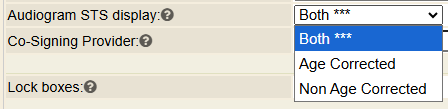
- User preference “Audiogram STS display” - Displays the red STS alert
if found on an Age Corrected and/or Non Age Corrected, depending on what
you have your preference set to.
- Control Panel → My Setting → Audiogram STS display → Options: Both, Age Corrected, Non Age Correct
Translations
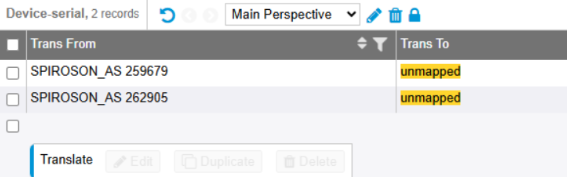
- Serial Number maps to the Location Code
- Device-serial: for serial device number
- TRANS FROM: Serial Device Number
- TRANS TO: Location Code in Enterprise Health
* Device-tech: for examiner field, this will save as the author of the document
    * TRANS FROM: Examiner name from device
    * TRANS TO: User in Enterprise Health
Related Pages
Configuration File
- File: Stxextractmie.mdb